Blog

  • How to find out what service is using a certain port?

    To find out which service or program using a port on a Linux machine, you can use the command

    fuser -vn tcp PORT_HERE
    

    Example

    root@sok-01:~# fuser -vn tcp 80
                         USER        PID ACCESS COMMAND
    80/tcp:              root       1144 F.... nginx
                         boby       1145 F.... nginx
                         boby       1146 F.... nginx
                         boby       1147 F.... nginx
                         boby       1148 F.... nginx
    root@sok-01:~# 
    

    In this case, TCP port 80 is used by a process with PID 1144, that is Nginx. This process has multiple subprocesses with PID 1145, 1146, 1147, and 1148.

    You can also use

    root@sok-01:~# fuser 80/tcp
    80/tcp:               1144  1145  1146  1147  1148
    root@sok-01:~# 
    

    This just lists all process IDs. You can find the process by looking at the result of “ps aux” command and finding the process with the above process ids.

    Using netstat

    Another method is to use “netstat -lntp” command

    root@sok-01:~# netstat -lntp
    Active Internet connections (only servers)
    Proto Recv-Q Send-Q Local Address           Foreign Address         State       PID/Program name    
    tcp        0      0 127.0.0.1:631           0.0.0.0:*               LISTEN      913/cupsd           
    tcp        0      0 0.0.0.0:443             0.0.0.0:*               LISTEN      1144/nginx: master  
    tcp        0      0 127.0.0.1:5982          0.0.0.0:*               LISTEN      22719/VBoxHeadless  
    tcp        0      0 0.0.0.0:7070            0.0.0.0:*               LISTEN      1036/anydesk        
    tcp        0      0 127.0.0.1:7878          0.0.0.0:*               LISTEN      2969/ssh            
    tcp        0      0 127.0.0.1:3306          0.0.0.0:*               LISTEN      1118/mysqld         
    tcp        0      0 127.0.0.1:2222          0.0.0.0:*               LISTEN      22719/VBoxHeadless  
    tcp        0      0 0.0.0.0:111             0.0.0.0:*               LISTEN      1/init              
    tcp        0      0 0.0.0.0:80              0.0.0.0:*               LISTEN      1144/nginx: master  
    tcp        0      0 10.42.0.1:53            0.0.0.0:*               LISTEN      26291/dnsmasq       
    tcp        0      0 192.168.122.1:53        0.0.0.0:*               LISTEN      1532/dnsmasq        
    tcp        0      0 127.0.0.53:53           0.0.0.0:*               LISTEN      856/systemd-resolve 
    tcp6       0      0 ::1:631                 :::*                    LISTEN      913/cupsd           
    tcp6       0      0 ::1:7878                :::*                    LISTEN      2969/ssh            
    tcp6       0      0 :::5900                 :::*                    LISTEN      22719/VBoxHeadless  
    tcp6       0      0 :::111                  :::*                    LISTEN      1/init              
    root@sok-01:~# 
    

    This lists all listening ports. The last column shows PID/Program name. To find a specific port, you can use grep

    root@sok-01:~# netstat -lntp | grep 80
    tcp        0      0 0.0.0.0:80              0.0.0.0:*               LISTEN      1144/nginx: master  
    root@sok-01:~# 
    

    In the above command, we find which program uses port 80.

  • Disable catch-all email on Cpanel Server

    To disable catch-all email address for all sites hosted on Cpanel Server, run

    sed -i 's/^\*: [^ ]*$/*: :fail: ADDRESS DOES NOT EXIST/g' /etc/valiases/*
    

    Back to Cpanel Server

  • Install Thin web server

    Thin is a Ruby web server that can handle high levels of concurrency.

    Install it with

    gem install thin
    
    root@server70 [/home/redmine]# gem install thin
    Building native extensions.  This could take a while...
    Building native extensions.  This could take a while...
    Successfully installed eventmachine-0.12.10
    Successfully installed daemons-1.1.2
    Successfully installed thin-1.2.11
    3 gems installed
    Installing ri documentation for eventmachine-0.12.10...
    Installing ri documentation for daemons-1.1.2...
    Installing ri documentation for thin-1.2.11...
    Installing RDoc documentation for eventmachine-0.12.10...
    Could not find main page README
    Could not find main page README
    Could not find main page README
    Could not find main page README
    Installing RDoc documentation for daemons-1.1.2...
    Installing RDoc documentation for thin-1.2.11...
    root@server70 [/home/redmine]# 
    

    Installing thin on Ubuntu

    You can install thin web server on Ubuntu/Debian using

    apt install thin
    
  • .forward file

    Users can create a .forward file in their home directories that is used by mail servers like exim, sendmail used to redirect email to another email account.

    When mail is sent to a local user, the sendmail command checks for the $HOME/.forward file. The $HOME/.forward file can contain one or more addresses or aliases. If the file exists, the message is not sent to the user. The message is sent to the addresses or aliases in the .forward file.

    On Cpanel servers, /root/.forward contains the email address of the server administrator, so all emails to root get forwarded to the Server Admin email account.

    Example

    [root@server52 ~]# cat /root/.forward 
    admin@serverok.in
    [root@server52 ~]# 
    

    To create a .forward file, you can run

    echo "you@gmail.com" > ~/.forward
    

    This will create a file $HOME/.forward with your email address inside it.

  • How to host static site using pm2

    PM2 is a process manager for node.js applications. You can use PM2 to host static websites.

    To host a static website, create a folder, and put your files inside.

    mkdir /home/website

    Let’s create a static file, say index.html

    echo "Welcome" > /home/website/index.html

    Now you can make the site live using the following pm2 command

    pm2 serve /home/website 8082

    Now the static site will be available at

    http://localhost:8082

    If you have a Single Page Application (SPA) like Angular, React, you can use the option –spa with pm2 command so all non-existent pages get routed to index.html internally.

    pm2 serve --spa
  • How to find all subdomains of a domain

    How to find all subdomains of a domain

    Subfinder is a subdomain discovery tool that discovers valid subdomains for websites by using passive online sources. It has a simple modular architecture and is optimized for speed. subfinder is built for doing one thing only – passive subdomain enumeration, and it does that very well.

    Subfinder is designed to comply with all passive sources licenses, and usage restrictions, as well as maintaining a consistently passive model to make it useful to both penetration testers and bug bounty hunters alike.

    https://github.com/projectdiscovery/subfinder

    To run the software using docker, first install docker on your computer. You can find instructions to install docker at

    https://serverok.in/docker

    Pull the docker image with the command

    docker pull projectdiscovery/subfinder:latest
    

    To find all subdomains of a domain, run

    docker run -t projectdiscovery/subfinder:latest -d DOMAIN_NAME_HERE
    

    find all subdomains

  • Export MySQL Database table as an XML Document

    Export MySQL Database table as an XML Document

    To export a MySQL database table as an XML document, you can use mysqldump command like

    mysqldump DB_NAME TABLE_NAME --xml
    

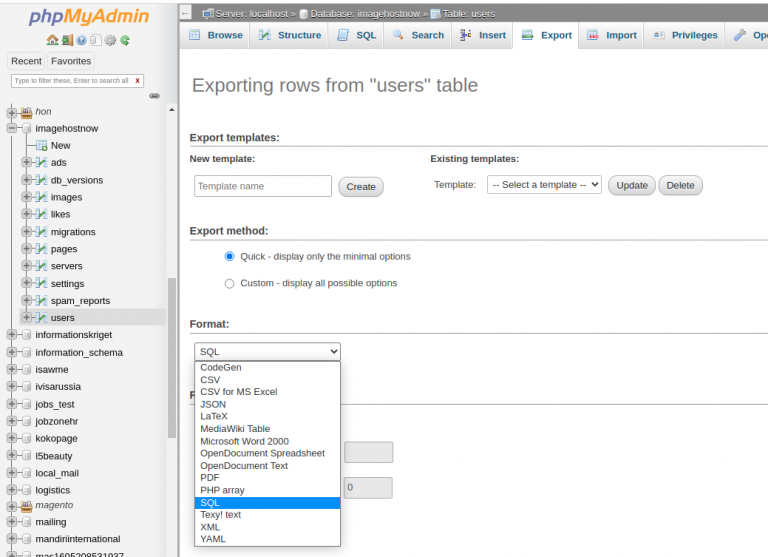
    phpMyAdmin table export feature also gives the option to save Data in multiple formats.

    phpmyadmin export  XML

    Back to MySQL

  • documentation

    Sphinx is a tool that makes it easy to create intelligent and beautiful documentation.

    https://www.sphinx-doc.org/

  • PrestaShop show order comment in PDF invoice

    PrestaShop show order comment in PDF invoice

    To show user comment in PrestaShop PDF invoice

    Edit file classes/pdf/HTMLTemplateInvoice.php

    vi classes/pdf/HTMLTemplateInvoice.php
    

    Inside function getContent(), find around line 161

    $carrier = new Carrier((int) $this->order->id_carrier);
    

    Add below

    $sokOrderComment = $this->order->getFirstMessage();
    

    In the same file, around line 333, find the $array variable, inside it, add

    'sokOrderComment' => $sokOrderComment,
    

    PrestaShop order comment in invoice

    Edit file pdf/invoice.tpl

    vi pdf/invoice.tpl 
    

    Find

    {$legal_free_text|escape:'html':'UTF-8'|nl2br}
    

    Add above

    {$sokOrderComment}

    To show total weight in PDF invoice, see PrestaShop show total product weight in PDF invoice

    Back to PrestaShop

  • PrestaShop show total product weight in PDF invoice

    PrestaShop show total product weight in PDF invoice

    To show total product weight in PrestaShop PDF invoice, edit file.

    vi classes/pdf/HTMLTemplateInvoice.php
    

    Inside function getContent(), on line 166, find

             foreach ($order_details as $id => &$order_detail) {
    

    Replace with

            $sokTotalWeight = 0;
            foreach ($order_details as $id => &$order_detail) {
                $sokTotalWeight += $order_detail["product_weight"] * $order_detail["product_quantity"]; 
    

    On around line 332, find

            $data = array(
                'order' => $this->order,
                'order_invoice' => $this->order_invoice,
                'order_details' => $order_details,
                'carrier' => $carrier,
                'cart_rules' => $cart_rules,
                'delivery_address' => $formatted_delivery_address,
                'invoice_address' => $formatted_invoice_address,
                'addresses' => array('invoice' => $invoice_address, 'delivery' => $delivery_address),
                'tax_excluded_display' => $tax_excluded_display,
                'display_product_images' => $display_product_images,
                'layout' => $layout,
                'tax_tab' => $this->getTaxTabContent(),
                'customer' => $customer,
                'footer' => $footer,
                'ps_price_compute_precision' => _PS_PRICE_COMPUTE_PRECISION_,
                'round_type' => $round_type,
                'legal_free_text' => $legal_free_text,
            );  
    

    Show weight in prestashop invoice

    Above $data line, add

            $sokTotalWeight = $sokTotalWeight . ' '  . Configuration::get('PS_WEIGHT_UNIT');
    

    Inside the array, add

                'sokTotalWeight' => $sokTotalWeight,
    

    Now we need to edit the PDF template file.

    vi pdf/invoice.tpl 
    

    Inside the file, find

    {$legal_free_text|escape:'html':'UTF-8'|nl2br}

    Add above

    Total Weight: {$sokTotalWeight}

    You can place this text in any place in the document based on where you need it to show in your PDF document.

    To show order comment in PDF invoice, see PrestaShop show order comment in PDF invoice

    Back to PrestaShop